ACCESS YOUR ONLINE COURSE GRADES
★ You can find your grades by using the Grades button on the course navigation or global navigation menus.
Your course grades screen will list your graded assignments, quizzes, and discussions and will allow you to review teacher feedback, rubrics, and other assignment details. You can also use the “what if” feature in the grades screen to see how scores on ungraded assignments will impact your final grade in the course. Using the “what if” feature does not change your actual grade, it just allows you to test how different scenarios will impact your final score.
HOW TO CHECK YOUR GRADES IN CANVAS
You can find your grades in various places.
- Inside a course, you can view recent feedback on the right, and view all your course grades by clicking on the grades tab, on the left.
- When you have been recently graded you can see them under “View Grades” on the right side of the dashboard, as well as be notified by email or text messaging, depending on what you have set up your notifications.
NOTE that when you look at your course grades, there are two options. To view your current grade in the course so far, you can check the Calculate based only on grade assignments box. This shows the grades so far in a course. The student is doing well with 100% but this is just the beginning of the course. The student must keep submitting assignments to keep that grade high. “What-if” scores also allow you to put in grades to see what you would need to earn to achieve your goals.
★ Watch the video below to complete your learning about accessing grades.
The video below reviews the best way to access grades for your online class. It also reviews how to use the “what if” feature and how to see different details about your assignment scores.
USE MODULES TO ACCESS YOUR LESSONS
★ The best way to navigate your class is through the Modules tab, which contains an outline of all of your required lessons and activities.
Each Module will contain files, discussions, assignments, quizzes, and other learning materials for the course in the order that you should complete them. Once you click on a link in the Modules area, you can use the Next and Previous buttons at the bottom of the page to continue with your lesson.

HOW TO USE MODULES
- Click the Modules tab on the left navigation bar of your online class.
- Review the Module requirements, which may include:
- Modules might have to be completed in order. You can see under each Module which other Module must be completed before you can move on.
- If due dates have been set, they will appear next to the items in the Modules outline.
- If set by your teacher, item completion requirements will be noted under each item.
- Select the first item in the outline to begin or the item where you previously left off.
- Use the Next and Previous buttons at the bottom of each page to progress through the course.
- IMPORTANT If you come across an assignment or page that says it is locked, it means you have not completed a previous assignment or page, and you should go back through the Modules to see what you have missed.
HAVING TROUBLE? WE ARE HERE TO HELP!
If you need Academic Help, please contact your teacher.
Canvas / myLearning System Requirements: View the Browser and Plugin Requirements here https://guides.instructure.com/m/4214/l/41056
Getting Support
★ If you need help, click the Help icon on the left-hand global navigation menu.
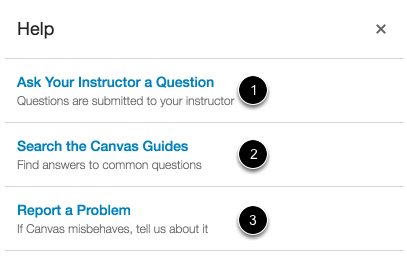
★ If you need help, click the Help icon on the left-hand global navigation menu.